Developer Guide — New Project
Wait for DevOps handover before starting
DevOps will send you the GitHub repo link and staging site credentials first.
What DevOps Sends You
GitHub Repo:   https://github.com/ChamodTharuka/rocell-wordpress-theme
Branch:        staging

Staging Site:  https://rocell.dev.enfection.com
WP Admin:      https://rocell.dev.enfection.com/wp-admin
WP User:       admin
WP Password:   xxxxxxxx
Overview
Step 1: LocalWP  → Create local WordPress site
Step 2: Theme    → Create your custom theme folder
Step 3: Git Bash → Connect theme folder to GitHub repo
Step 4: Git Bash → Push theme → pipeline runs automatically
Step 5: Check    → Staging site updated with your theme ✅
Step 1: LocalWP — Create Local Site
Open LocalWP → + (bottom left) → Create a new site

Site name:    Rocell Website
PHP version:  8.2
→ Create site
XAMPP conflict
Stop XAMPP Apache + MySQL before starting LocalWP site. You cannot run both at the same time on port 80.
Step 2: Create Your Custom Theme
Go to your LocalWP theme folder:
Create a new folder named rocell-theme. Add your theme files inside:
rocell-theme/
├── style.css        ← required
├── functions.php    ← required
├── index.php        ← required
└── ... (your other theme files)
Minimum style.css header:
Activate theme in LocalWP:
Step 3: Connect Theme Folder to GitHub Repo
Open Git Bash and run these commands:
# 1. Go to your theme folder
cd "C:/Users/[your-name]/Local Sites/rocell-website/app/public/wp-content/themes/rocell-theme"
# 3. Connect to the GitHub repo DevOps created
git remote add origin https://github.com/ChamodTharuka/rocell-wordpress-theme.git
# 4. Download the DevOps files (deploy.yml, sonar config, .gitignore, docker files)
git fetch origin
Your theme folder now has DevOps files merged with your theme files. ✅
Step 4: Push Theme to Staging
Step 5: Check Pipeline & Verify Staging
Check GitHub Actions:
Wait for both jobs:
✅ SonarQube Scan    (~1-2 min)   — code quality check
✅ Deploy to Staging (~30-40 sec) — theme pushed to server
Verify staging site updated:
Step 5.5: Export Local Site to Staging (All-in-One Migration)
When to use this
Use this when you want to push your local WordPress content, plugins, and database to the staging site. Theme files are handled by Git/CI-CD — this is for DB + content only.
Install Plugin (Local + Staging)
Install All-in-One WP Migration plugin on both:
- Your LocalWP site (
http://[project]-website.local/wp-admin) - Staging site (
https://[project].dev.enfection.com/wp-admin)
Export from Local Site
Important settings before exporting:
1. URL Replacement — replace local URL with staging URL:
| Find | Replace With |
|---|---|
http://[project]-website.local |
https://[project].dev.enfection.com |
http:\/\/[project]-website.local |
https:\/\/[project].dev.enfection.com |
http:\/\/\/[project]-website.local |
https:\/\/\/[project].dev.enfection.com |
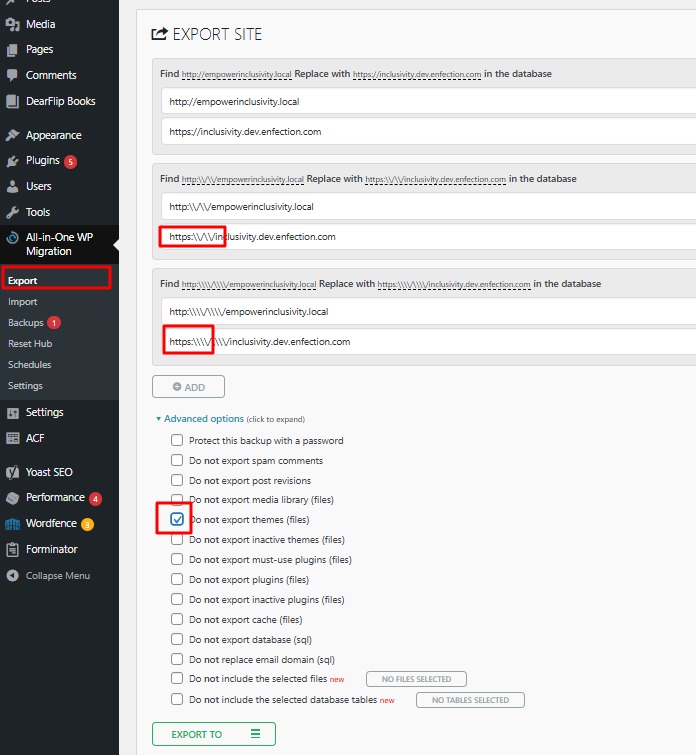
2. Advanced Options — check these:
✅ Do not export themes (files)     ← IMPORTANT! Git handles themes
☐ Do not export media library       ← uncheck (export media)
☐ Do not export plugins             ← uncheck (export plugins)
Always check 'Do not export themes (files)'
Your theme is managed by Git/CI-CD pipeline. Never overwrite it via migration export.
Then click Export To → File → download the .wpress file.
Import to Staging Site
Staging WP Admin → All-in-One WP Migration → Import
→ drag and drop the .wpress file
→ wait for import to complete
→ click "Finish"
After import
- Check staging site looks correct
- Re-activate your theme if needed:
WP Admin → Appearance → Themes → [project] Theme → Activate
Daily Workflow (After First Setup)
# 1. Edit theme files in your editor

# 2. Test locally
http://rocell-website.local

# 3. Push to staging
git add .
git commit -m "feat: describe your change"
git push origin staging

# ✅ Pipeline runs → staging updated automatically
Key Rules
- Always push to
stagingbranch only - Never push to
productionormain— DevOps only productionbranch = live client site — DevOps merges when client approvesmainbranch = safety backup only- DB or content changes → use All-in-One Migration plugin, not Git
- Pipeline failed? Check Actions tab → click failed run → read logs